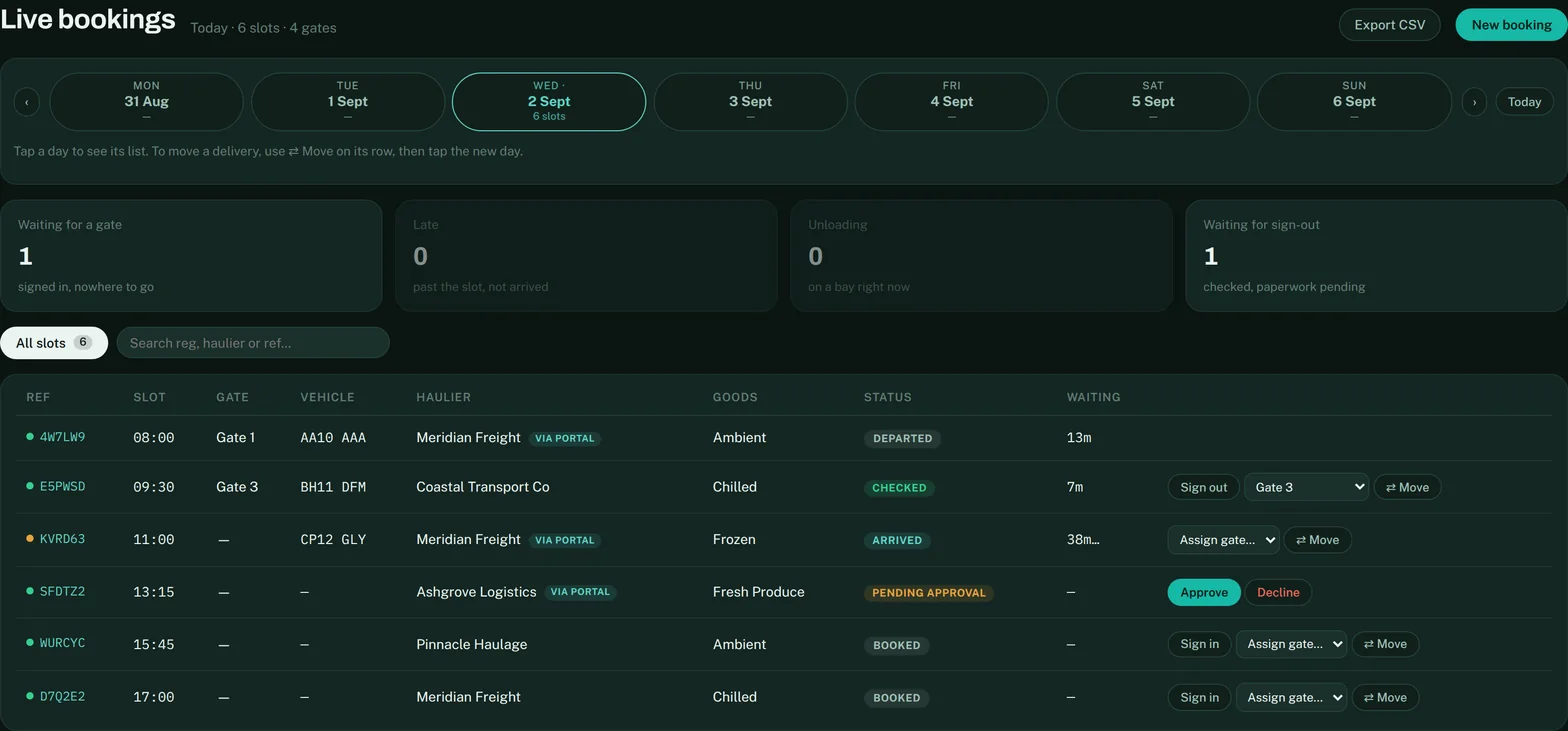
The week strip across the top marks every day that has bookings. Tap a day and the table shows it. The four tiles underneath are the whole day at a glance — waiting for a gate, late, unloading, waiting for sign-out — and tapping one narrows the list to just those.
Adding one yourself
New booking, top right. Start typing a carrier or supplier name and it suggests from your Contacts. Fill in the category and the time; the driver details you often won’t have, and that is fine, because the driver fills them in when they check themselves in. The Calendar page (under your account menu) has the full calendar with published availability for planning further ahead — both write the same booking.
A week at a time, from a spreadsheet
Most sites already get their inbound schedule as a file from a customer, a planning system or a haulier — and re-keying it is the job nobody wants. Import a schedule, top right, takes that file as it is: CSV or Excel, columns matched by their heading. Date (or Date & time) and Haulier or Supplier are needed; Time, Reference or PO number, Pallets, Category, Vehicle reg, Trailer and Driver are picked up when they are there. Dates read the way they were written — dd/mm/yyyy, an Excel date, or ISO — and a date with no time lands on the 09:00 slot. You see exactly what will land on the board before anything is saved: rows already on the board (same reference, or the same partner at the same time) are left alone, rows without a readable date are counted and skipped, and your PO number stays on the booking as its own reference, searchable from the top bar.
When a carrier or supplier asks for one
They cannot book your diary. A partner with a portal link can ask for a slot, and it arrives as Slot requested on the day they are asking for, with Approve and Decline on the row. Until you approve it, it is not a booking: it is not counted, it is not on any board, and no driver can be sent against it. Approving is what puts it on the diary at the time they asked for. Declining asks you for a reason, and they see that in their portal straight away, as they see the approval. A partner asking to move a slot you already gave them shows as Move requested instead, and the original time stays in place until you answer. Anything that came in this way carries a via portal mark once it is live.
Moving one
Use ⇄ Move on the row, then tap the new day on the strip. Only people a manager has trusted with rescheduling see the button — it is handed out per person under Users & Team, and the database enforces the same rule.