Warehouse moduleSite plan
Racking is reached from the Site plan now, not from a tab of its own: click an aisle on the plan, or use the Racking in <Area> button above it, and the racking for that area opens. A bookmark or a link to the old Racking & Slots tab still works — /app/racking hands over to the site plan with the racking already open.
Building it
Warehouses have hundreds of slots and nobody is typing them in one at a time. Open Design racking, describe an aisle — how many bays per side, how many levels high, racking on the left, the right, or both — and Apply creates every slot in it, named Area-Aisle-Rack-Level to match the labels on the steel. Growing an aisle adds slots; shrinking it archives the empty ones, and a slot holding stock is never touched. Add area for a chilled store or a bonded cage.
The racking, drawn
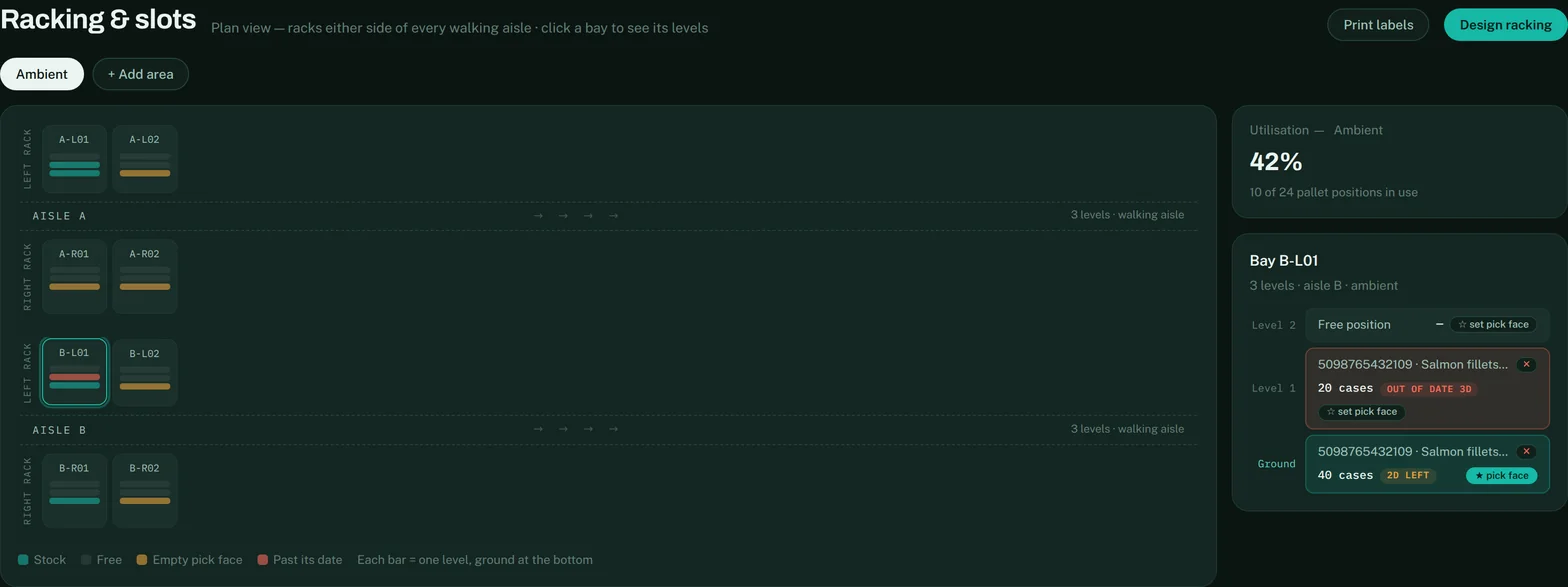
Opening an aisle draws it the way you would walk it: bay across, level up, ground at the bottom, matching the steel. Each bay shows one bar per level. Teal is stock, grey is free, amber is a pick face waiting to be filled, and red is stock past its date — the worst news in a slot wins the colour, so one out-of-date pallet behind three good ones is still a red slot. Click any bay to see what is on each level, how many days it has left, and to mark the ground-level slot as the pick face pickers pick from. Where? on the Stock screen jumps straight to a product’s slot.
Slots that have no aisle or no rack recorded cannot be drawn, so they appear in Not placed on the map rather than quietly disappearing. They still hold stock and can still be scanned — give them an aisle and rack to place them.
Who this is really for