- Switch off what you don’t do. Plan & billing → Workspace tools. Turn on only what this site actually does.
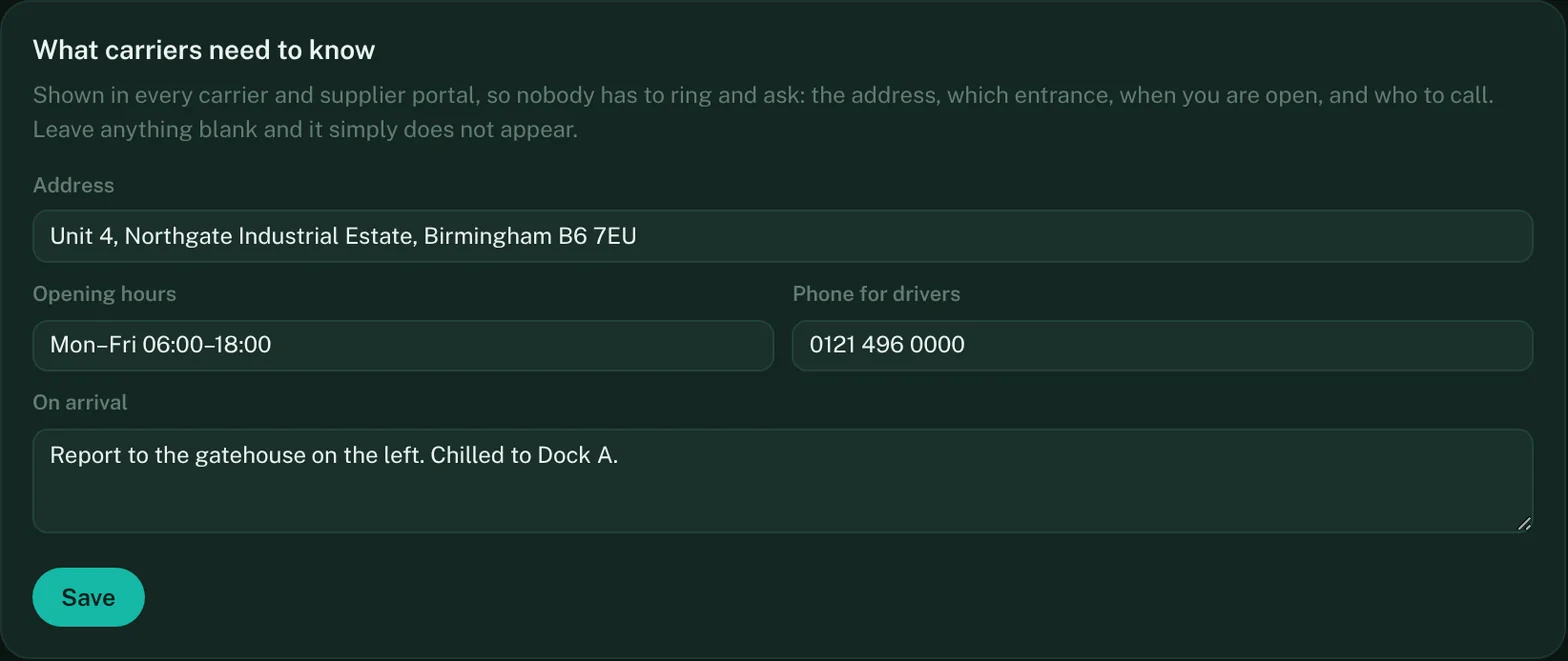
- Tell carriers how to find you. Site & arrival → What carriers need to know. Address, opening hours, a phone number for drivers, and what to do on arrival. Written once, it reaches every carrier you have ever issued a portal link to.
- Print the gate sign. Site & arrival → Open the printable gate sign. It carries the QR code drivers scan to check themselves in.
- Add your carriers and suppliers. Contacts. Add them one at a time, or drop in a CSV or Excel export with Import from a spreadsheet — Name is the only column it insists on. Set each one’s free time and detention rate here and the waiting-time evidence packs will do the arithmetic for you.
- Send each carrier their portal link. Open the carrier or supplier under Contacts and press Issue a link — one private link per partner, and the Portal links tab on the same screen lists every one you have issued. Email it to their transport office. They need no account and no password.
- Set up your gates. Yard & Gates → Your gates. Name them the way the site names them — “Dock 3”, “Bay B”, “Chilled 1” — because that is what the driver will be told.
- Design your racking. Racking & Slots → Design racking. Describe an aisle once and every slot in it is created.
- Add your people. Users & Team. Office users and managers sign in with an email; checkers, pickers and butchers get a floor login — a username, no email needed.
Site & arrival — what carriers need to know
Contacts

One thing worth getting right first time
Name your gates and your racking slots exactly as they are labelled on the floor. Every screen after this shows those names to a driver or a forklift operator, and a slot called A-3-2 in the system and “third bay, second up” on the rack is a mistake waiting to happen.