Warehouse moduleGoods In · the checker app
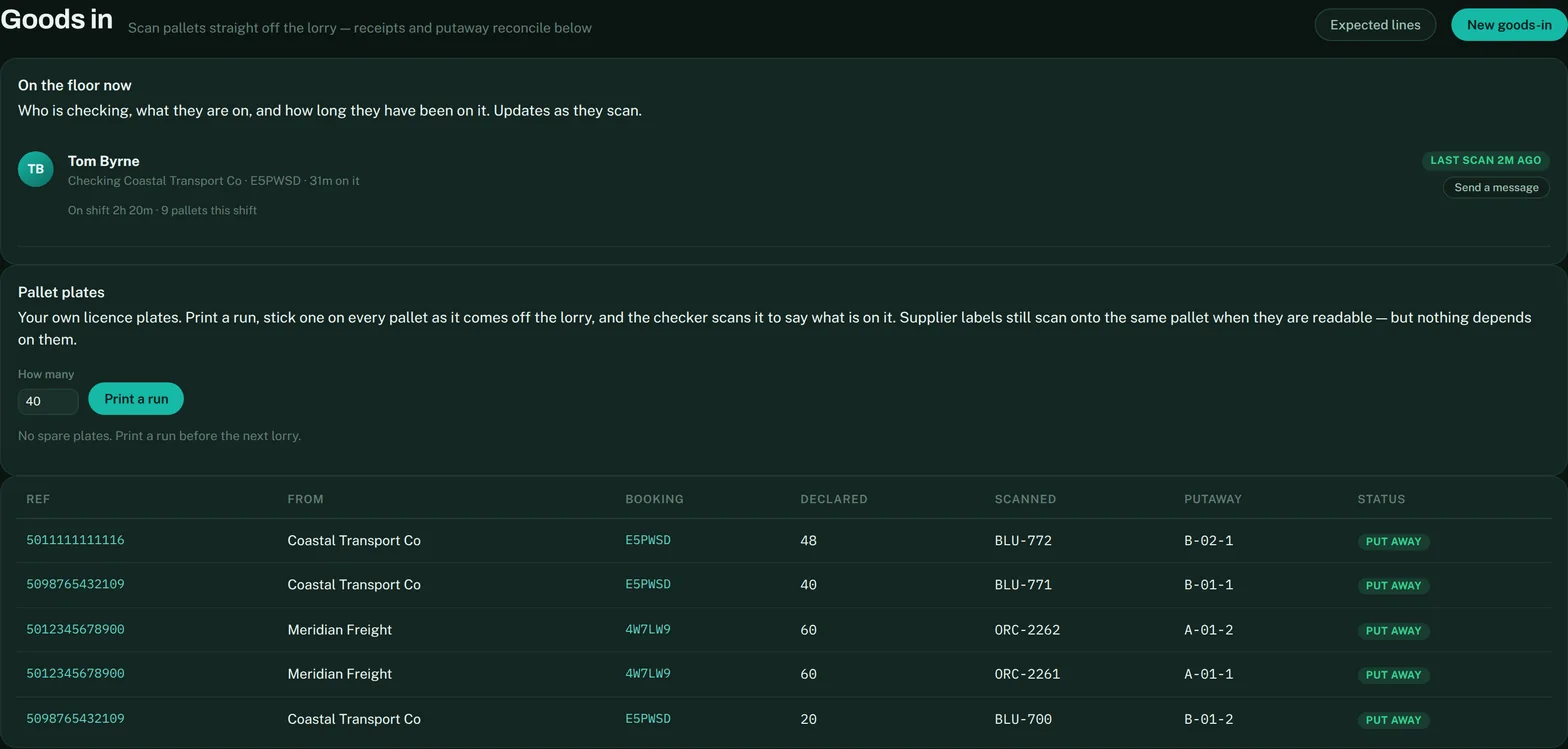
Goods in happens on the floor, in the checker app at dockledger.co.uk/checker, on a phone or a scanner gun. The Goods In screen in the console is the office’s window onto it: who is clocked on, what they are checking, how long they have been on it, and every pallet as it is recorded. The two stay in step live — a scan on the dock is on the office screen before the checker has put the gun down.
Step 1 — Receive: what came off the lorry
The checker clocks on, picks the delivery, and scans each pallet as it comes off. DockLedger reads the standard GS1-128 label the supplier already prints, so the pallet number, product code, batch, expiry or best-before and case count all come off the label — nobody types them. A keyboard-wedge scanner works with no setup at all.
For suppliers whose labels won’t scan, print a run of pallet plates from the Goods In screen — your own licence plates. Stick one on every pallet, scan it, choose the product from your list and count the cases. Dates that are past, or within a week, are flagged as they are added, so a short-dated pallet is spotted on the dock and not three weeks later.
Temperature at count-in
Counting a pallet in also takes its temperature. Every reading is judged on the spot against the site’s temperature bands — chilled, frozen or ambient, set once under Settings → Site (owner or manager only, and never blank without you saying so: chilled defaults to −1–5°C, frozen below −18°C). A reading outside its pallet’s band holds the pallet immediately, with the reading and the band recorded as the reason.
Step 2 — Against the paperwork
The expected list is what should have arrived. It can reach DockLedger three ways, all from Expected lines on the Goods In screen:
- Off the paperwork. Once the checker has photographed the delivery note, invoice or CMR, choose Read this document and DockLedger reads the lines off it. Nothing saves until you have ticked each one — it proposes, you confirm.
- Pasted. Paste the rows straight out of the supplier’s spreadsheet or email. Column headings are recognised automatically.
- By the carrier or supplier. They declare it in their own portal before the vehicle arrives, and it is waiting for you when it does.
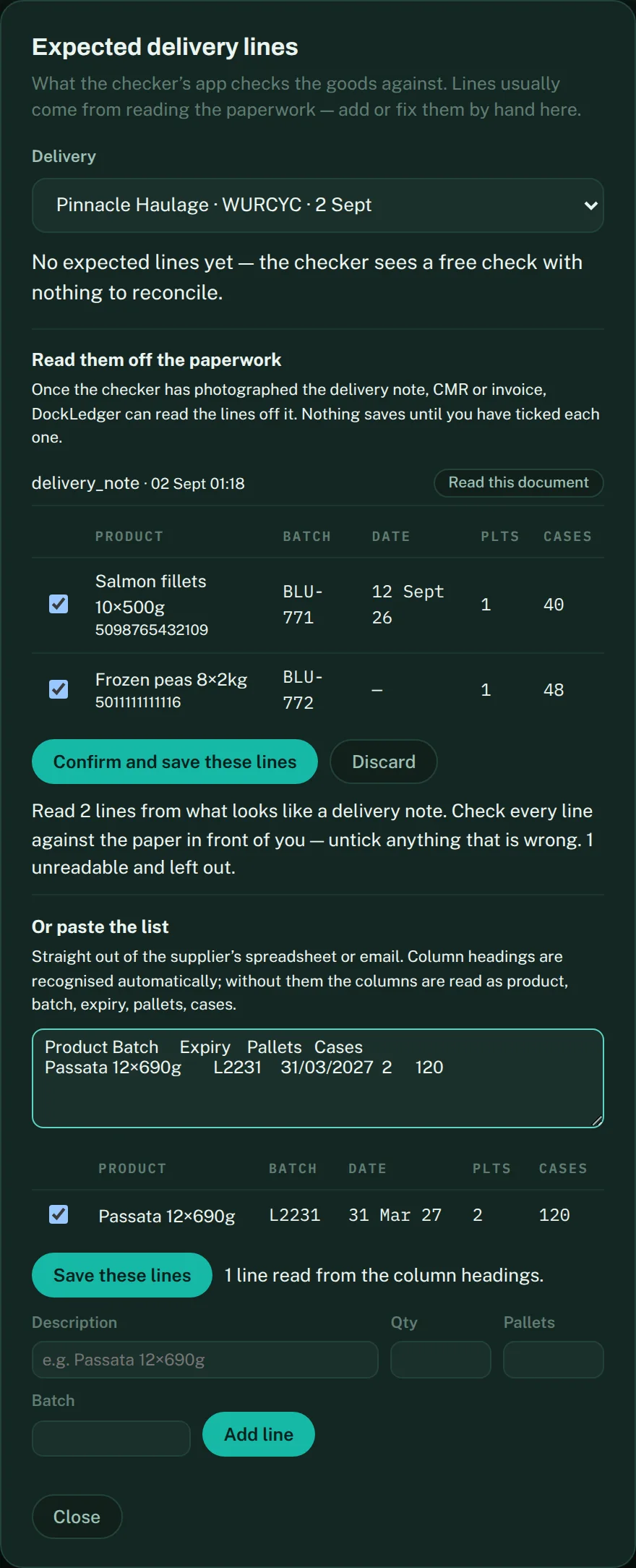
The checker sees Expected against Difference as they scan, so short, over, unexpected, or wrong batch is obvious on the dock. Matching goes strongest-key-first — pallet number if there is one, otherwise product plus batch, otherwise product — so a supplier who does not print SSCCs still reconciles.
The release gate
Step 3 — Put away: where the pallet went
The checker switches to Put away, scans the pallet, scans the slot label, and the pallet has an address. From that moment the pallet can be found, the slot knows what is in it, and the rack map knows what colour to be. Print slot labels from the racking, opened off the Site plan → Print labels.
Step 4 — Pick: oldest date first
On the Stock screen, Pallet rotation lists each product with the exact pallet that should go first: first expired, first out. Where there is no expiry it uses the best-before, and where there is neither the pallet sorts last, because stock that cannot be rotated must never be proposed ahead of stock that can. Pick this records the pick and takes the cases off the ledger at that slot.
If you need a different pallet — the front pallet is damaged, the slot is blocked, the customer asked for a longer date — choose Another, pick the pallet, and DockLedger asks why, records the reason, and lets you carry on. It does not stop you working. It just makes sure the exception has a name against it. Case-by-case picking is a separate job, covered under Picking by the case.
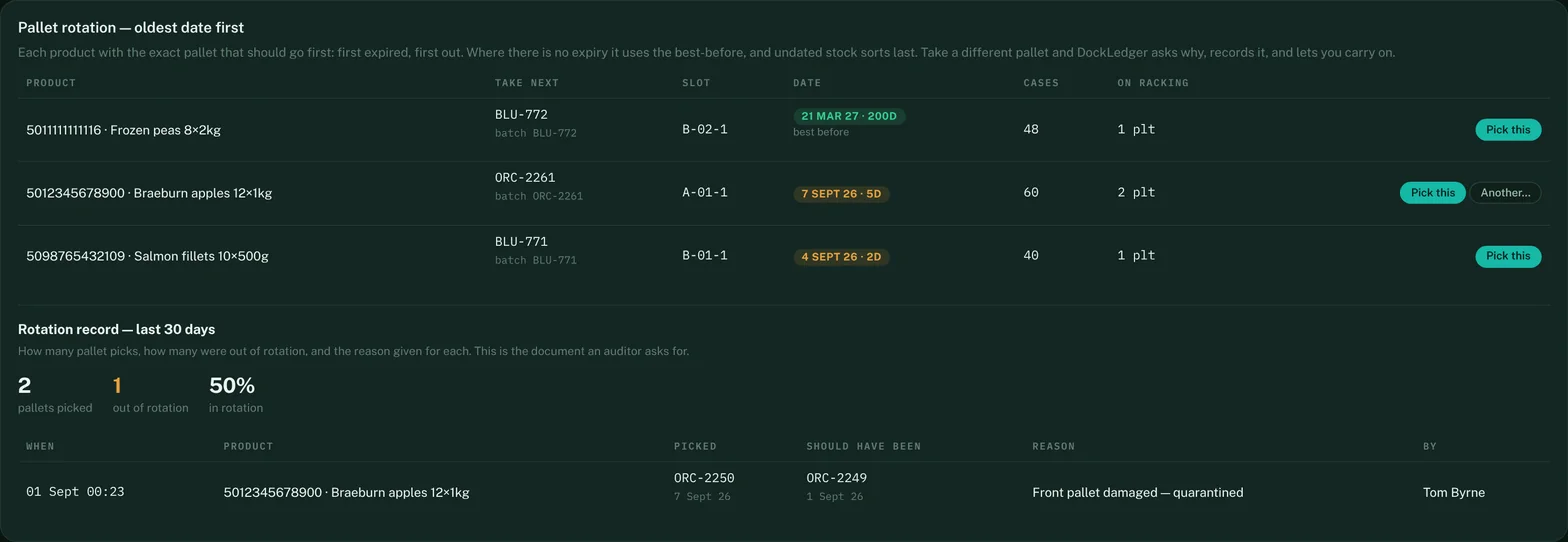
The rotation record underneath is the payoff: how many pallet picks in the last 30 days, how many were out of rotation, and the reason given for each. That is the document an auditor asks for.