The first ten minutes
- Create your workspace. Go to dockledger.co.uk and start the free trial. A workspace is your site — its bookings, its contacts, its racking. Nobody outside it can see any of it.
- Confirm your email. You will get a link. Until you click it you can sign in but not much else.
- Look at a working day before you type anything. Open the account menu at the top right, choose Settings & preferences, and press Load demo data. It fills the board with realistic deliveries, contacts and stock so you can see how the screens behave. Clear it again from the same place when you are done — it never mixes with your real records.
- Follow the Getting started card. The Overview shows a short checklist — loading bays, waiting-time terms, the arrival sign, contacts, your first booking, your team, your racking — and ticks each item off as the workspace fills in. Hide it when you are done; it comes back from the account menu.
Finding your way around
Everything is in the rail down the left-hand side, in the order a day happens:
- The yard — Overview, Live Bookings, Yard & Gates, Deliveries & Paperwork, Contacts, Telematics.
- The warehouse — Stock, Racking & Slots, Goods In, Pick Board, Goods Out, Stock Takes, Traceability.
- The business — Waiting Times, Users & Team, Plan & Billing, Site & arrival, Wallboard, Mobile apps.
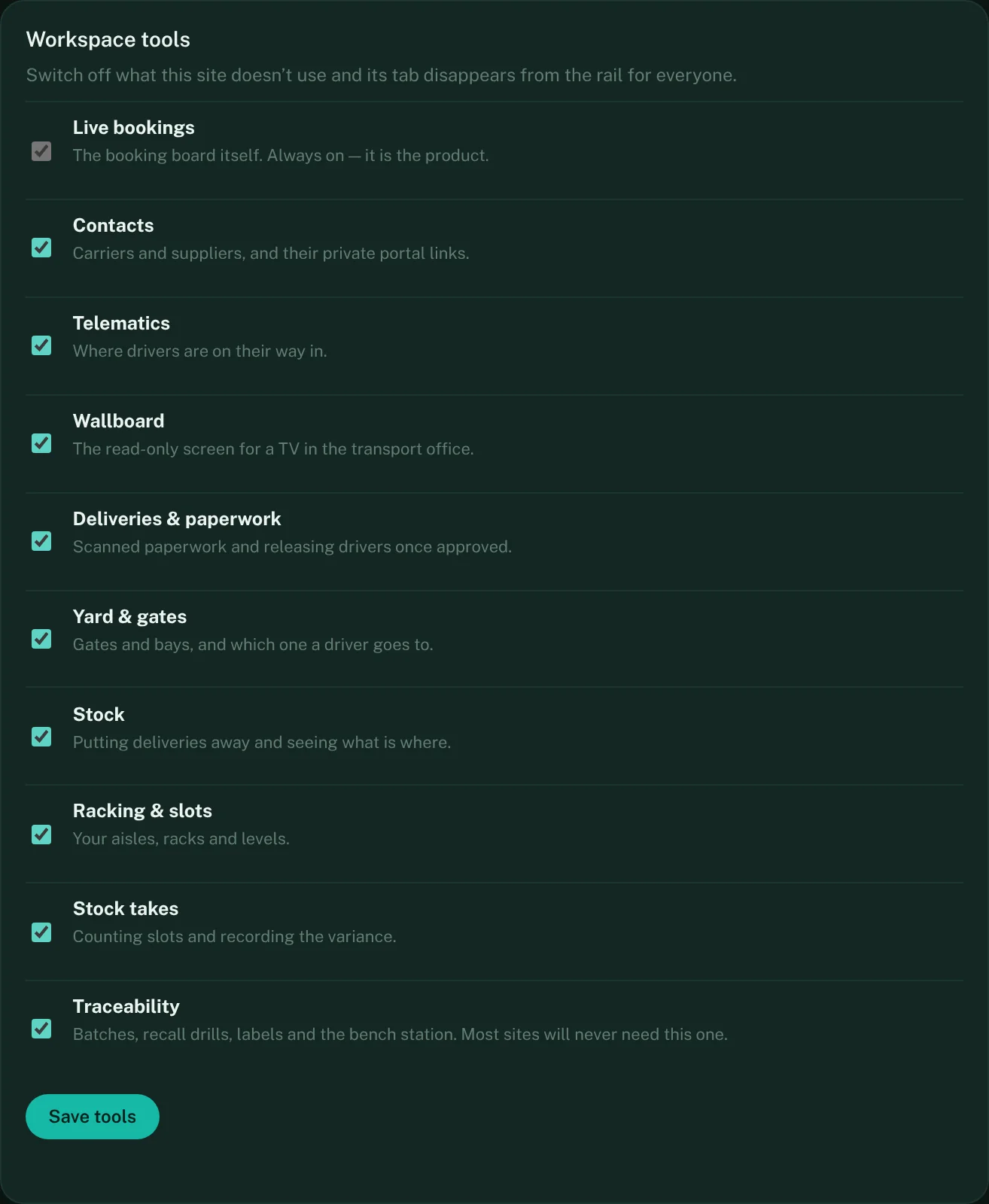
A tab only appears once its module is switched on under Plan & billing, and a site can hide any tab it does not use from Workspace tools on the same screen. Switching something off hides the tab for everyone but keeps every record in it, so nothing you entered is ever lost to a change of plan.
Workspace tools