Every plandockledger.co.uk/status
When a screen will not load, or every handheld on the dock says No signal, the first question is whether the problem is yours or DockLedger’s. dockledger.co.uk/status answers it. Nobody needs to sign in to see it, so it works from any phone.
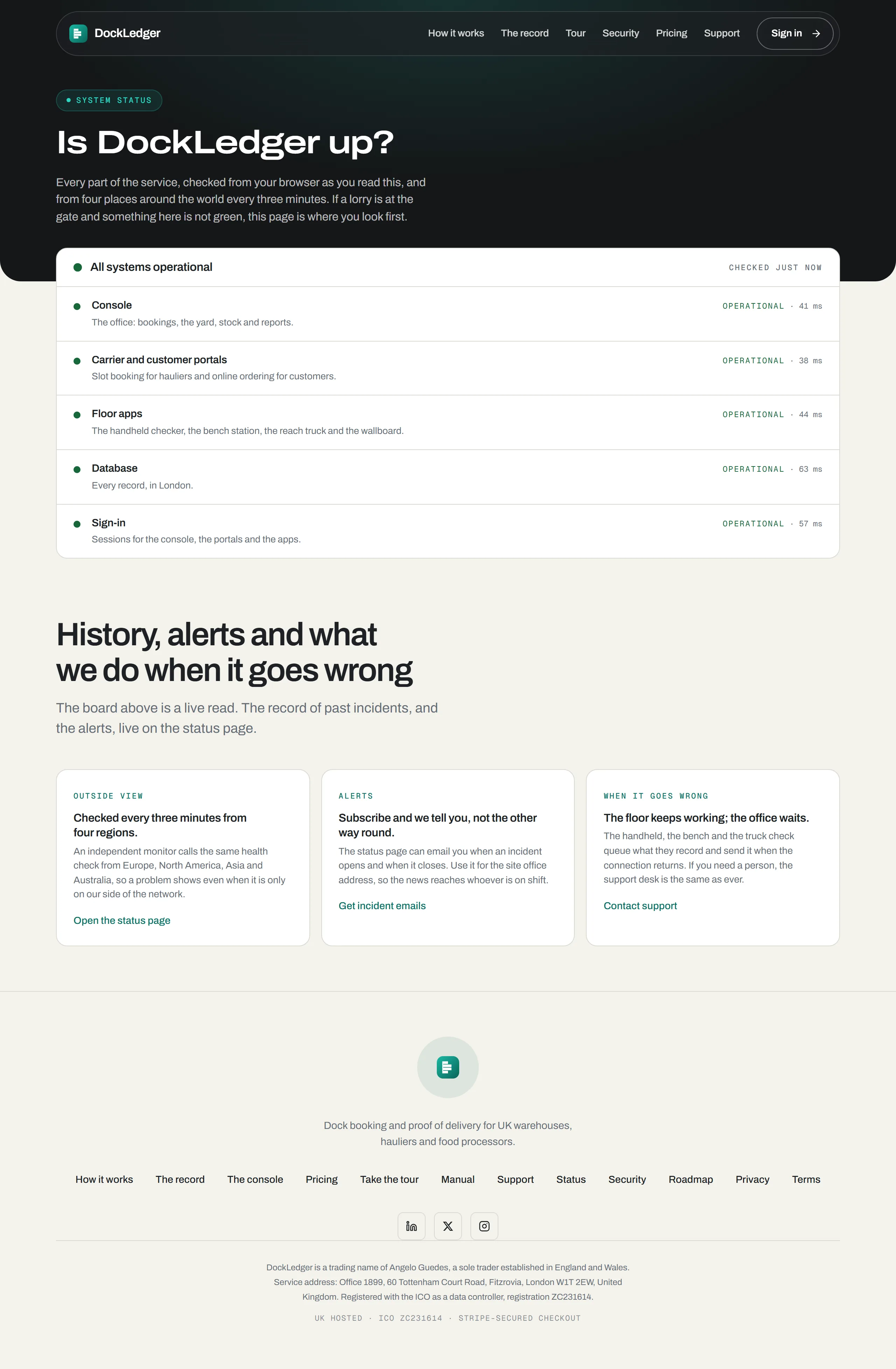
The live board
The board checks five parts of DockLedger from your own browser the moment you open the page, and again every minute while the tab is on screen. Come back to the tab and it checks straight away.
- Console. The office: bookings, the yard, stock and reports.
- Carrier and customer portals. Slot booking for hauliers and online ordering for customers.
- Floor apps. The handheld checker, the bench station, the reach truck and the wallboard.
- Database. Every record, held in London.
- Sign-in. Sessions for the console, the portals and the apps.
Each part reads Operational, with how many milliseconds it took to answer, or Degraded or Down. The console or the database not answering counts as Down, and the headline says Service disruption; any other part not answering counts as Degraded, and the headline says Partly degraded. The corner says when the last check was made.
Unknown means it could not ask
The outside view
status.dockledger.co.uk is kept by an independent monitor that checks DockLedger from outside, day and night, so a problem shows there even when it is only on DockLedger’s side of the network. It keeps the record of previous incidents and planned maintenance, which is the place to look when you want to know when something started or whether it has happened before. The status page links to it.
That page can also email you when an incident opens and again when it closes. Choose Get incident emails on the status page and use the site office address, so the news reaches whoever is on shift rather than one person’s inbox.
What the floor does with no signal
The floor apps are built for a chiller with one bar. When a handheld cannot reach DockLedger, most of what it records is held on the device and sends itself, in the order it was done, the moment there is a signal again. Nothing is lost, and nothing is sent twice. While it waits, a handheld’s signal chip reads, say, “No signal · 3 held”, then “3 to send” as it catches up; a bench screen says “3 held on this bench”.
- Goods in. Receiving pallets, putting them away and finishing a check are all held. A count-in with no signal is “Counted and held on this device”: the plate codes are made when the signal returns, you do not count the trailer again, and the labels come out at the goods-in bench afterwards.
- Picking. Picks are held. Asking the reach truck to fill a slot needs a signal.
- Reach truck. Moves and put-aways are held. A move made with no signal is recorded, but rotation cannot be checked from the truck, so if an older pallet should have gone first the office sees it flagged.
- Loading and delivering. Both work with no signal. Packing a box needs one, because each box is checked against the office as it is packed.
- Bench station and cutting room. A finished run is held on the device and records itself when the signal returns. The pack codes come from the office, so at the bench station the labels print once the office has answered; the cutting room does not print labels. Scanning a new box needs the office, so with no signal the bench waits rather than guessing.
Picks, moves and finished checks belong to the person who did them: if a phone is handed to someone else and they sign in, that work stays on the phone, untouched, until the first person signs in on it again. A count-in or photographs still waiting go up under whoever is signed in. So before a phone changes hands, let it send.
Held is different from refused. If DockLedger receives something and turns it down, for example a pick from a batch that was put on hold while the phone was out of signal, the app does not keep retrying. It shows a red Stopped card saying what you were doing and what the office system said, with Try again, I have dealt with it, and Copy for the office.
No private browsing on floor devices
The office during an outage
The console has no queue of its own: it needs the connection to save anything, so the office waits while the floor carries on. When DockLedger is back, the floor’s held work arrives and the office screens catch up by themselves. If you need a person in the meantime, the support desk is the same as ever.